
Completing a job
The completion form is where you get paid from. Hours in the hours field, parts as rows, photos attached. What you enter here is what goes on your RCTI, line for line.
A do-and-charge job
- Open the job and tap Complete.
- Work Completed: what you did. This goes to the agency on the report, so write it for them. No prices in here. Prices in the write-up are not paid.
- Rectification Notes: was it fixed, and is anything else needed.
- Hours on site: your time, in half hours. The amount beside it is what those hours come to at your rate. Under an hour is charged as one hour.
- After-hours call-out: emergency jobs only. It replaces the first hour with the call-out rate.
- Parts: one row per part or consumable, at your cost.
- Photos: before and after. A job without photos gets queried.
- Check Completed on and tap Submit Completion.
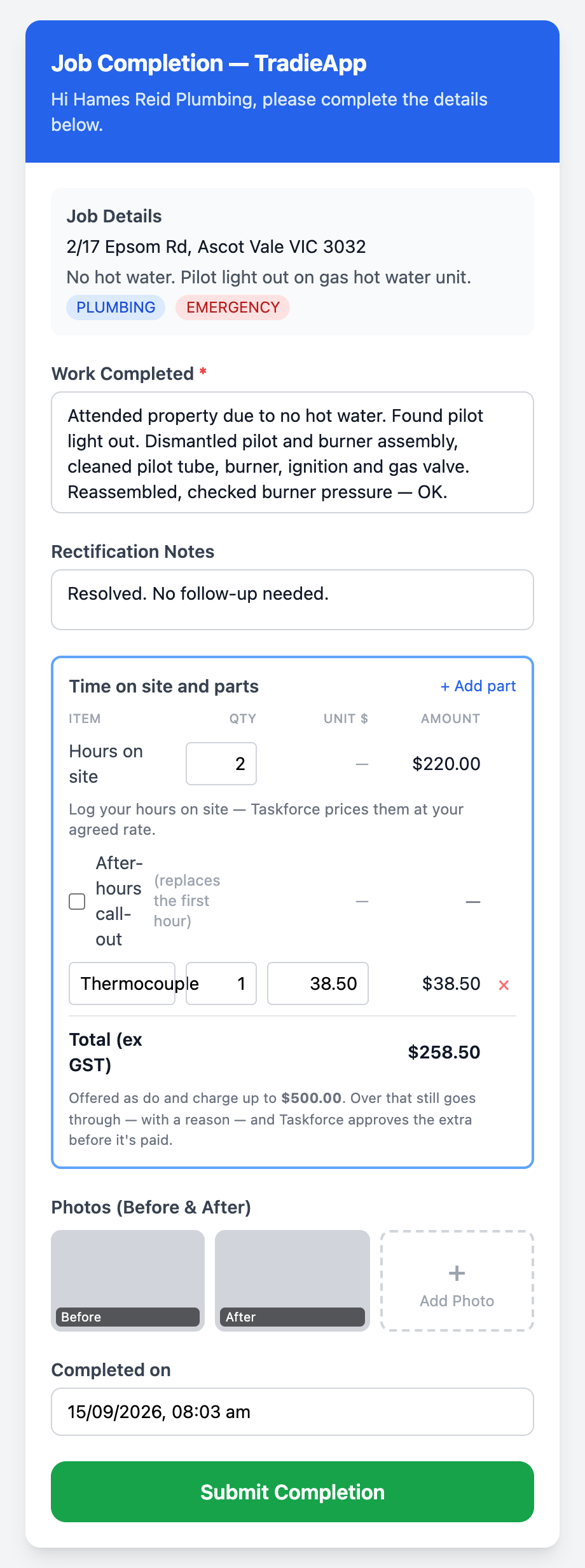
What you enter is what you are paid.
Over the cap
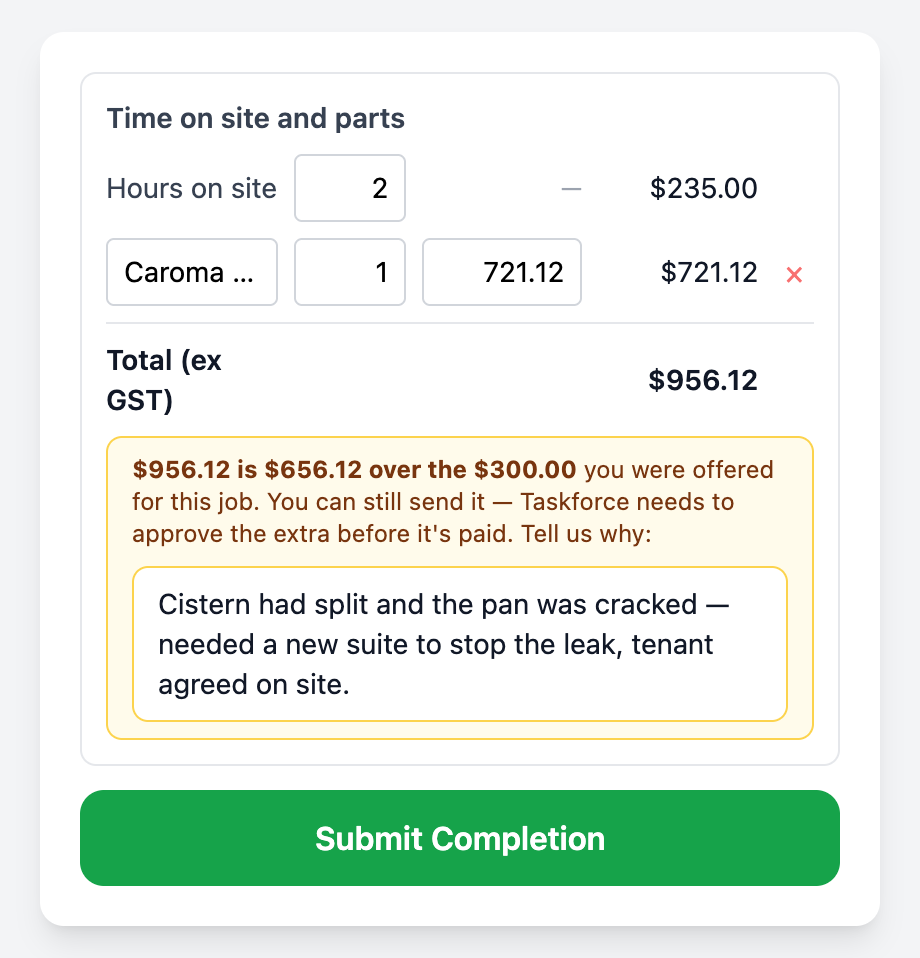
Enter the real hours and parts. The form shows how far over you are and asks why. Taskforce reads your reason and approves the extra before it is paid. Without a reason the form will not submit.
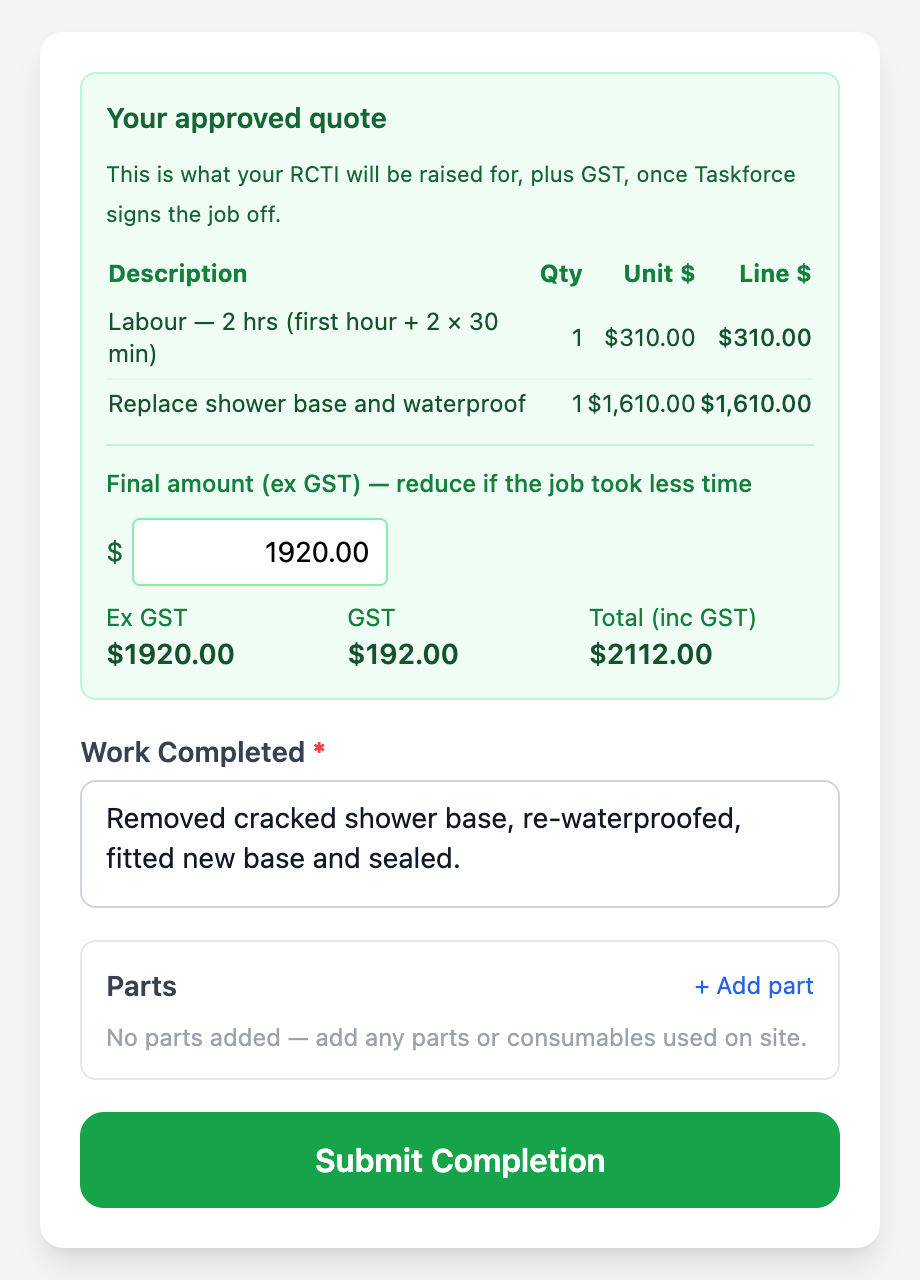
An approved-quote job
The form opens with Your approved quote at the top and no hours field: the quote already prices the labour. The figure shown is what your RCTI will be raised for, plus GST. Add any parts that were not in the quote, describe the work, add photos, submit. If the job took less time, lower the Final amount. It only goes down. To charge more, quote it as further works first.
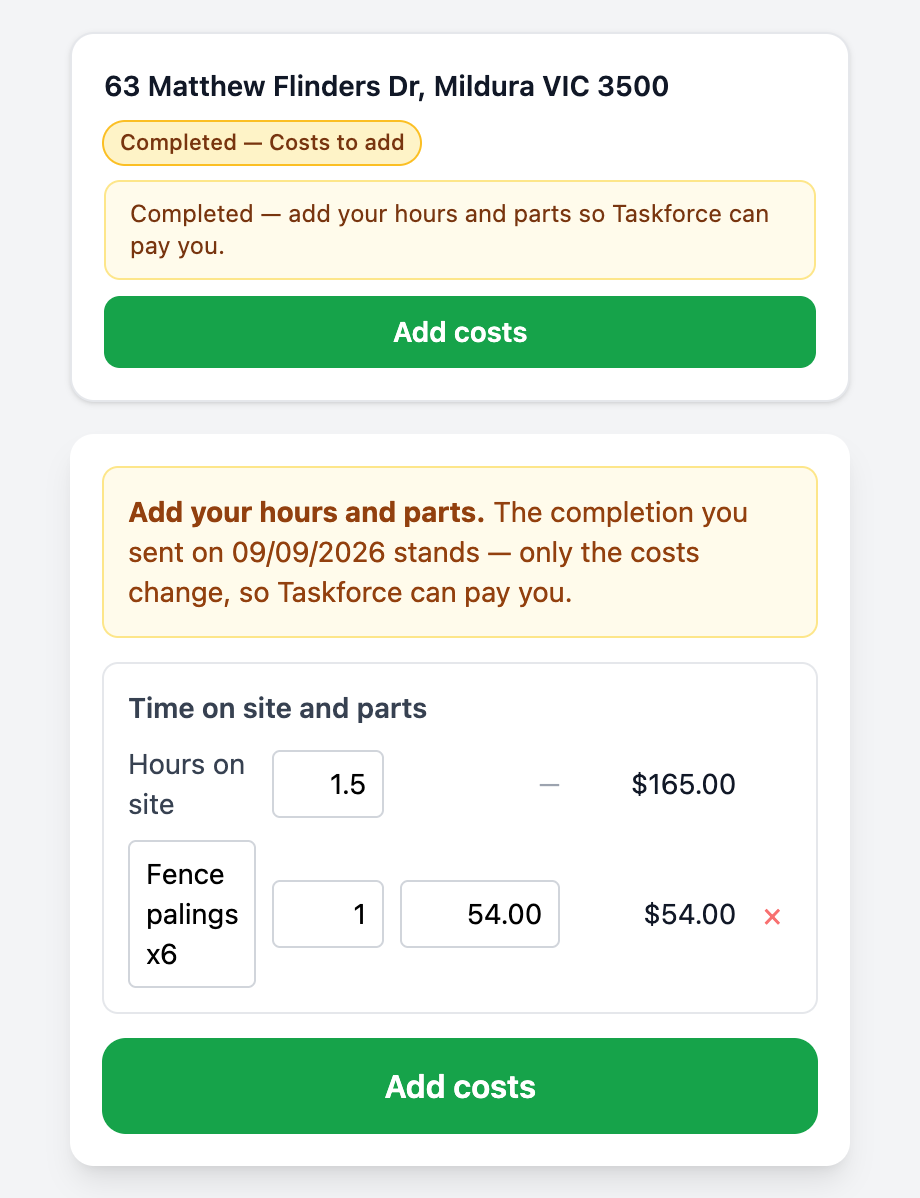
Finished, but not ready to price it
On a cap job, submit the completion with the write-up and photos and no hours or parts. The job moves to Completed with the pill Completed — Costs to add, and nothing is paid until the costs are in. Come back and tap Add costs when you have your receipts; the completion date does not change. Taskforce cannot pay until the costs are in and will remind you.
Couldn't do the job?
- Tried the tenant: log each call or text under Can't Proceed. After three, Taskforce chases them.
- Couldn't get in: take a photo of the front of the property and Report no access. The photo proves you attended, and the attendance is paid.
- Waiting on a part: Put on Hold with a reason and a revisit date, then Resume Job when you are ready.
Before you submit
- Hours in the Hours on site field, not in the write-up.
- Every part on its own row with a quantity and unit cost.
- After-hours ticked only if you attended out of hours on an emergency.
- Over the cap: reason given.
- Before and after photos attached.